Mopka has no separate app on the App Store or Google Play. It works as a PWA (Progressive Web App): you open it in a browser, and once you add it to your home screen it looks and works like any other app.
That way new versions reach everyone straight away, without waiting for Apple or Google to approve them.
Add to home screen on iPhone
On iPhone you have to use Safari. Chrome and other iOS browsers can't do this. It's an Apple restriction, not a Mopka one.
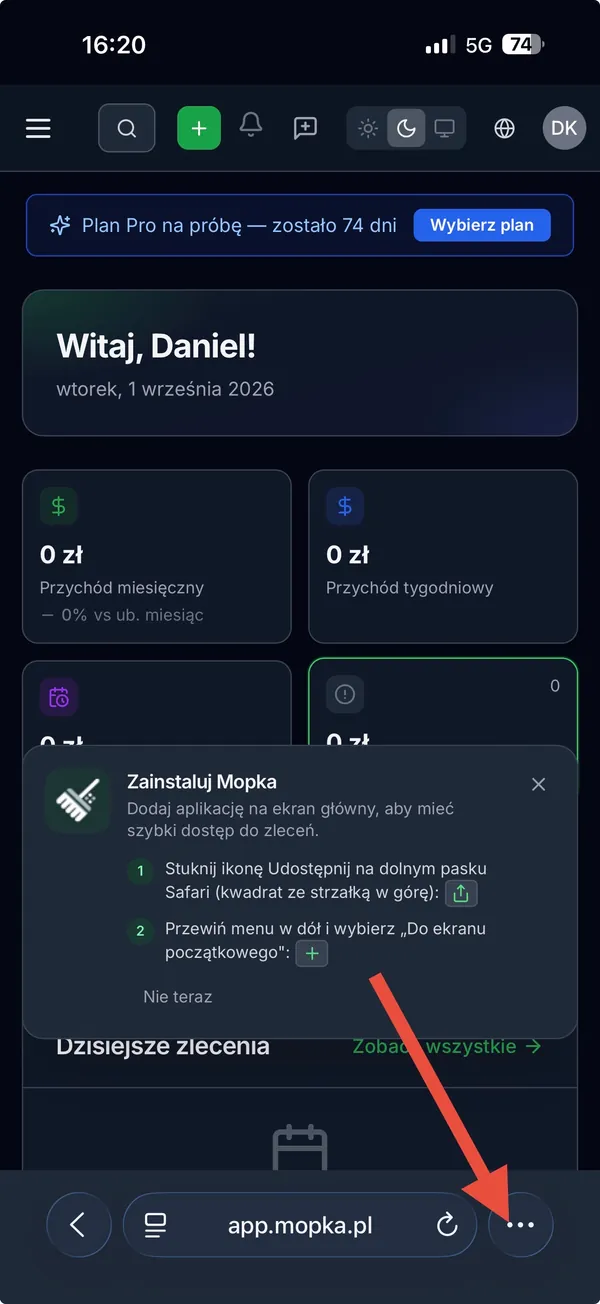
Step 1. Open app.mopka.pl and tap „…" on Safari's bottom bar. On older iOS you'll see the share icon (a square with an arrow pointing up) straight away. Tap it and skip to step 3.
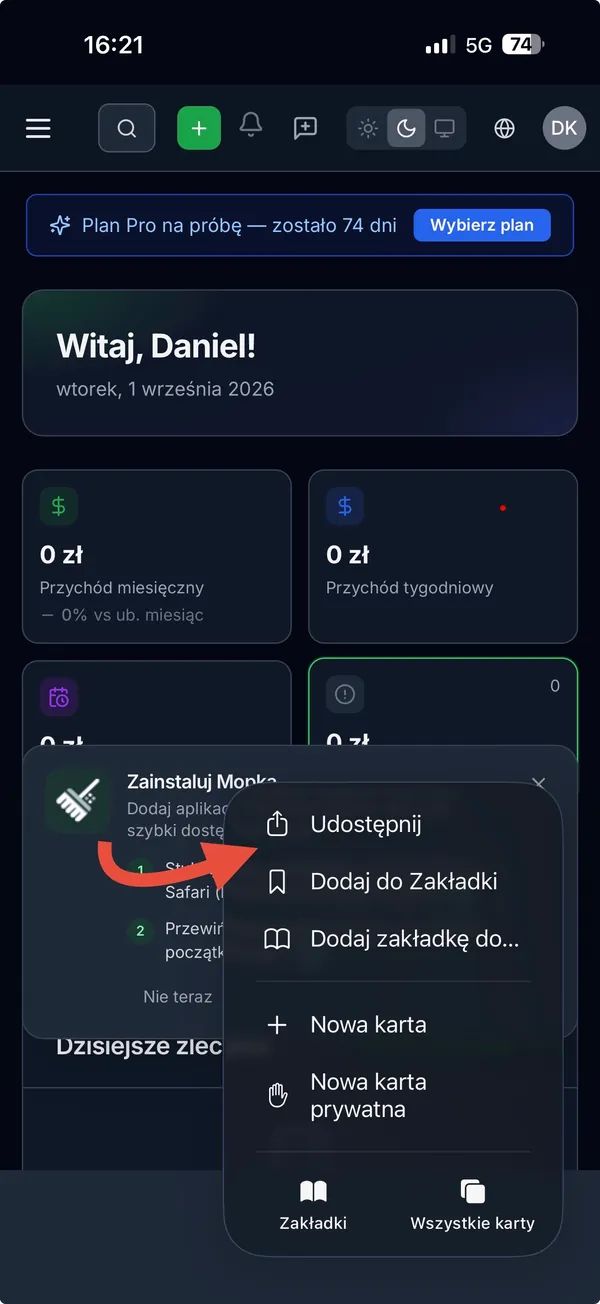
Step 2. Choose Share.
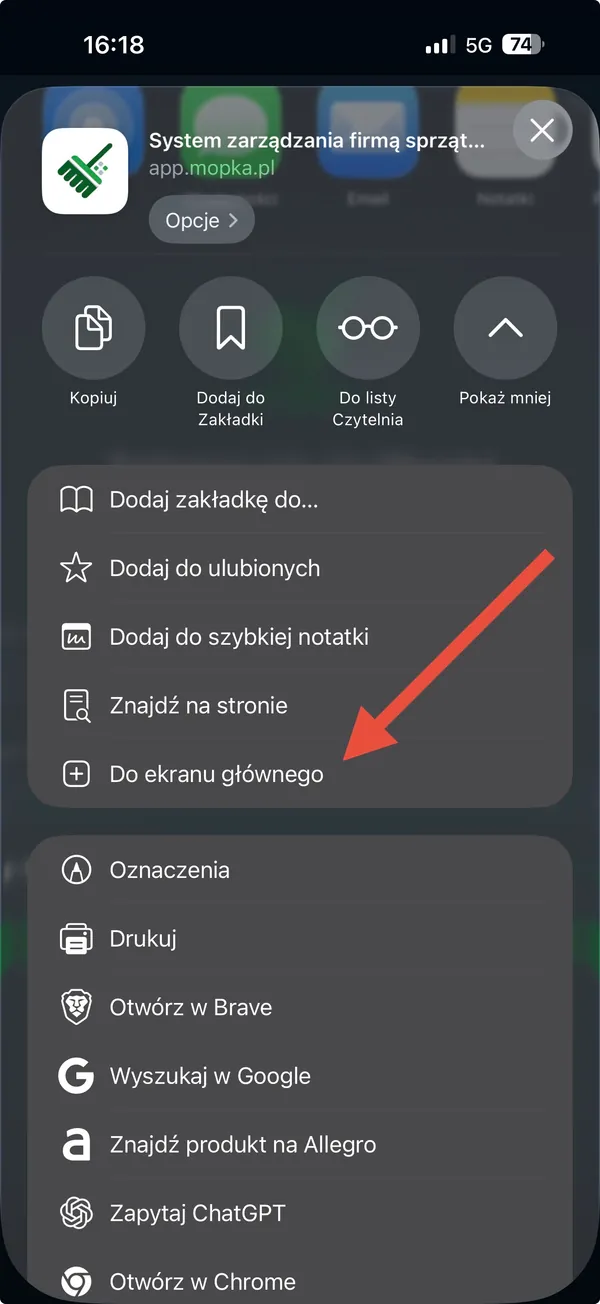
Step 3. Scroll down and choose Add to Home Screen.
Step 4. Confirm the name (defaults to „Mopka") and tap Add.
The screenshots come from a Polish-language iPhone. The menu positions are the same in any language.
The Mopka icon appears on your home screen next to your other apps. Tap it and Mopka opens full screen, without the Safari bar.
Add to home screen on Android
In Chrome:
- Open app.mopka.pl.
- Chrome usually offers to install it. If it doesn't, tap the menu (three dots) and choose Install app or Add to Home screen.
Mopka suggests it too: the employee sees an Install Mopka box with an Install button in the app.
What the employee has in the app
A person with the Employee role lands in a view built for the phone:
- Today: today's jobs with time and address, and the Navigate, Call and Start Job buttons.
- Job details: address, access code, notes, services, the crew, the checklist and before and after photos.
- Jobs: upcoming, completed and cancelled jobs.
- Absences: holiday and other absence requests.
- Notifications and Notices from the office.
- Profile: contact details, photo, push notifications and logout.
There's no client list, no invoices and no reports here, only what's needed in the field.
Push notifications
The app can send notifications to the phone, even when it's closed. The employee gets one when:
- you assign them to a job,
- you take them off a job,
- a job is cancelled,
- the office posts a notice.
The Today tab shows a Turn on notifications prompt. Later the employee can turn them on or off in Profile → Push notifications, where they can also send a test notification. On iPhone, notifications only work in the app added to the home screen, on iOS 16.4 or newer.
Weak signal
When the phone loses the internet, an Offline mode bar appears. The employee still sees today's jobs and the ones they've already opened.
Without signal, these are saved on the phone and sent automatically when the connection comes back:
- starting a job,
- finishing a job,
- ticking off the checklist.
Photos need the internet, so add them once the signal is back. If the company checks location when a job starts, starting it needs a connection too.
Updates
The app updates itself. When a new version of Mopka is out, the employee sees "A new version of the app is available" with a Reload button.
Which phones it works on
Mopka works in an up-to-date Safari on iPhone and iPad and in Chrome on Android. On very old phones that no longer get browser updates, some features may not work.