A hotel with your staff is a site where your people work in shifts and the site itself records the working time, for example in its own attendance system or on a paper card. In Mopka you plan the roster, the crew sees their shifts in the app, and at the end of the month you copy the hours from the site's cards. Payroll and one invoice for the month are calculated from these hours.
The whole thing in four steps:
- Set the site's address as Hotel with your staff.
- Plan the regular staff in the Roster tab.
- When the site orders extra people, add a Staffing order and assign people to it.
- At the end of the month, copy the cards in the Hours tab, then invoice the whole month in one row.
Setting up the site
The site is an ordinary client in Clients, for example “Hotel Przykładowy”. If it pays for the hours worked, set Pricing method to Hourly in the client's details and enter the hourly Default rate. The price of each shift is then calculated from the hours on the card.
On the client's page, next to the site's address, open the ⋯ menu, choose Edit and under Kind of place select Hotel with your staff.
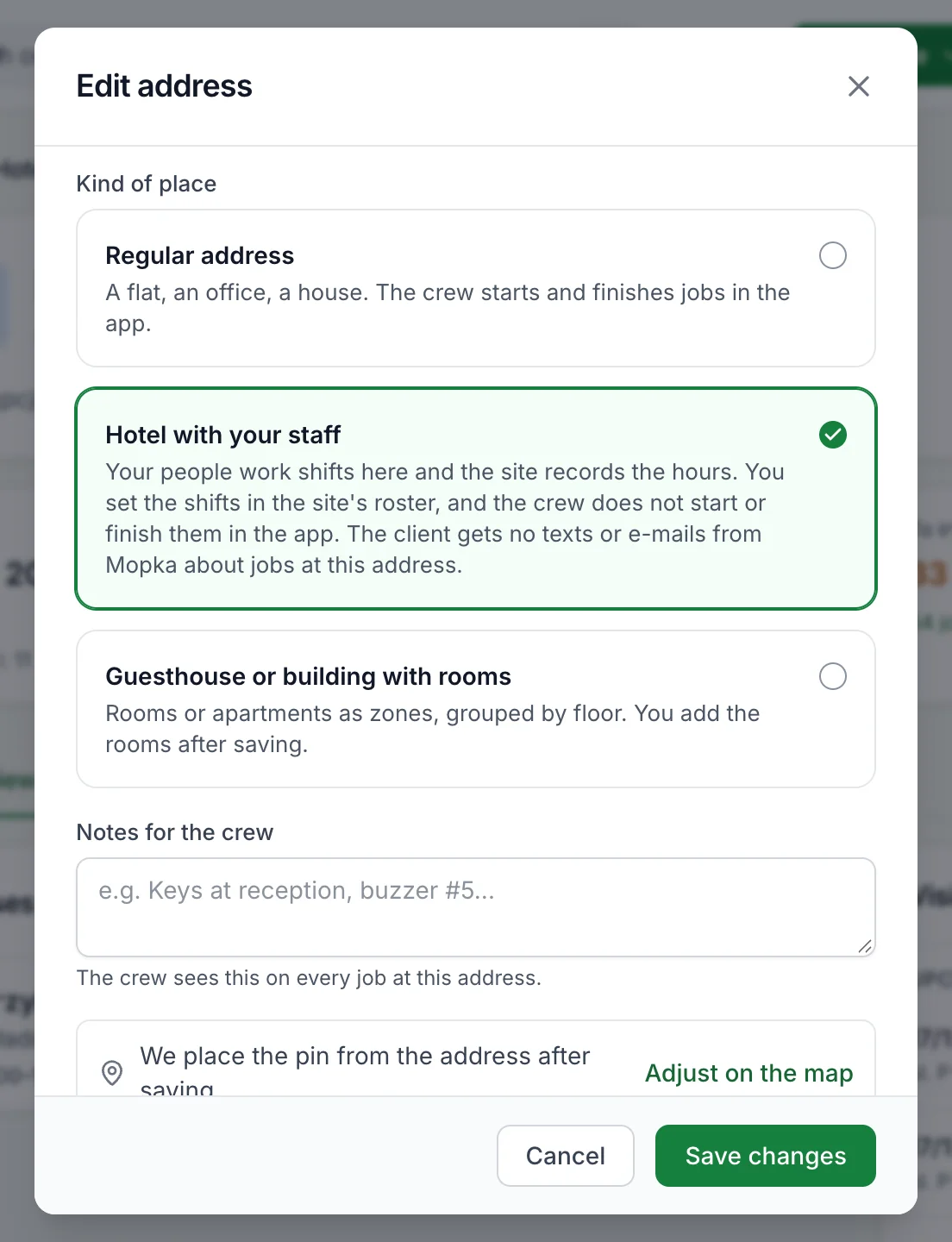
From then on:
- the crew sees the shifts at this address in the app, with the checklist and notes, but doesn't start or finish them,
- the Dashboard, Live and the job list don't mark these shifts as late,
- the client gets no texts or e-mails from Mopka about jobs at this address,
- the address's zones, for example the hotel's floors, take this setting from the main address.
The third option, Guesthouse or building with rooms, is for a site where you clean rooms or apartments as separate visits. After saving, you add the rooms as zones of the address, floor by floor.
Roster
Next to the site's address on the client's page there is now a Roster button. It opens the site's page with three tabs: Day, Roster and Hours.
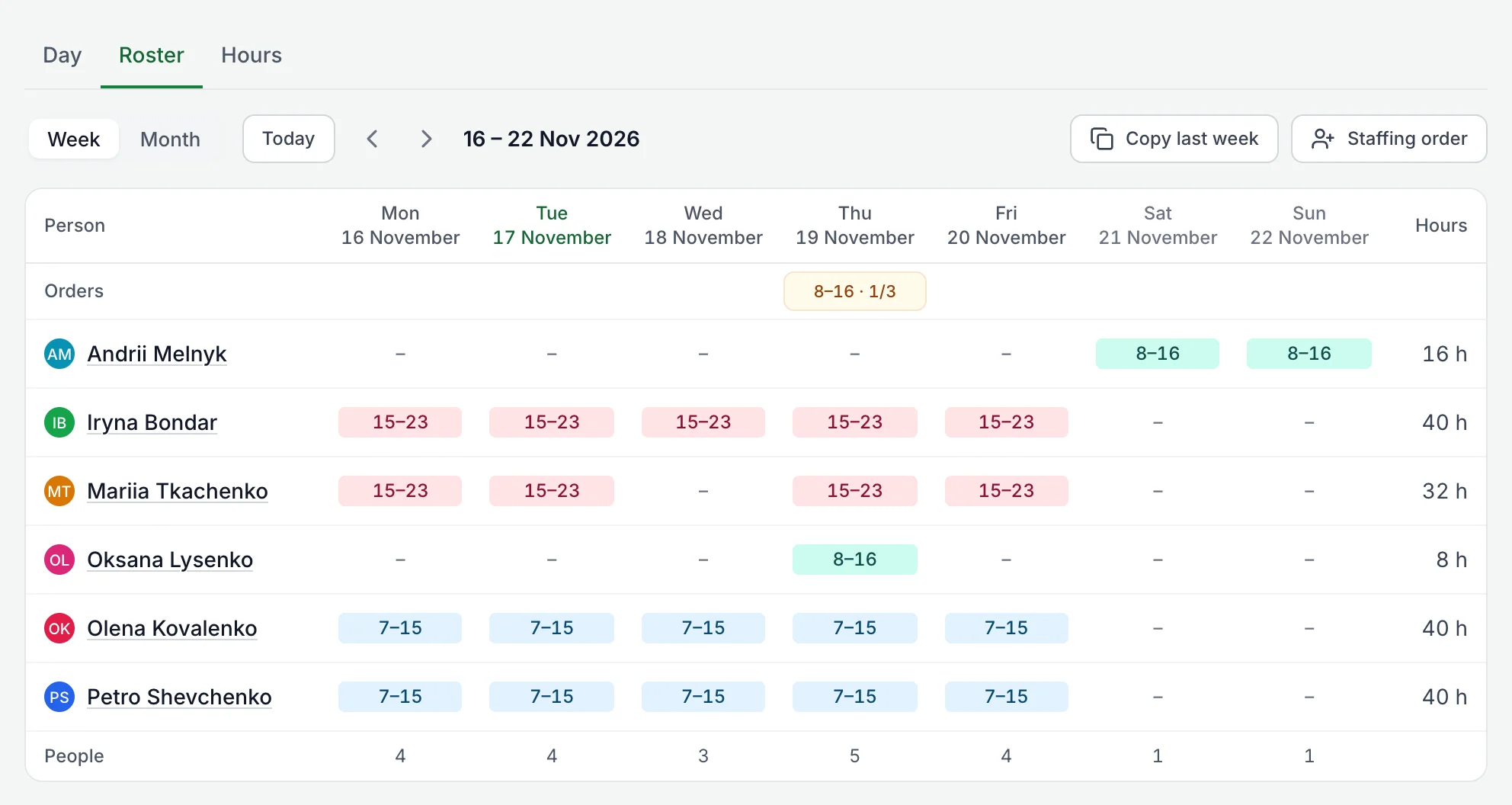
People are in rows, days in columns. Week and Month, Today and the arrows change the period. The last column adds up each person's hours, and the last row counts how many people work that day. You add another person with Add a person below the roster.
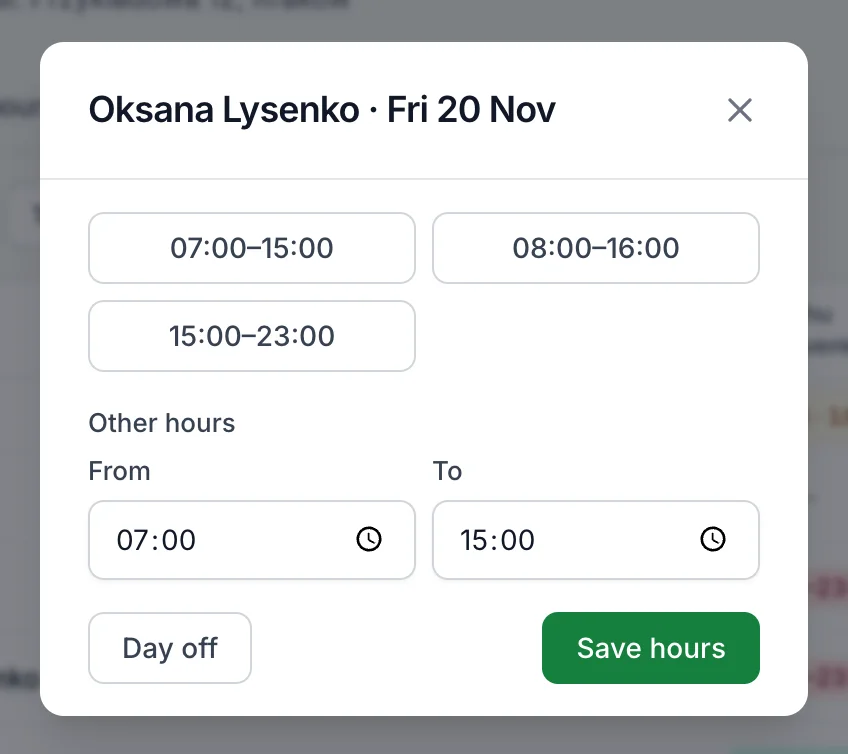
Click a person's day and a window opens with the hours you use most often at this site. Pick one of them, or enter Other hours and click Save hours. Day off takes the person off that day.
- Clicking with Shift or Ctrl (Cmd on a Mac) selects several days at once, and Set hours gives them all the same hours.
- Copy last week copies the previous week's shifts to the same days. In the month view, Repeat the first week does the same for the rest of the month. Days that have passed stay as they are, and so does the week of a person who already has a shift in it.
- The roster won't put a person on a shift when they have another job at that time, an approved absence or a job in another of your companies. It lists such days above the roster with the reason and saves the rest.
- A shift that has already started or has hours entered shows a padlock. You change it on the job's page.
- Visits in zones, for example cleaning a room, appear in the roster with the zone's name, but the roster doesn't change them.
On a phone, the roster shows the days one under another, and tapping a person opens their day.
Each shift is an ordinary job at the site's address with its crew and hours, so it also shows up in the calendar, in the job list and in the crew app. You don't create them by hand: the roster does it.
Staffing orders
You plan the regular staff in the roster. A Staffing order is for when the site asks for extra people, for example “3 people tomorrow from 8:00”. Click Staffing order above the roster, choose the day, the hours and How many people, then click Add order.
Orders have their own row in the roster with their status, for example “8–16 · 1/3”: one of three people assigned. Click the order to see who is already assigned and who in the roster has no shift at the site that day yet. Clicking a person adds them to the order.
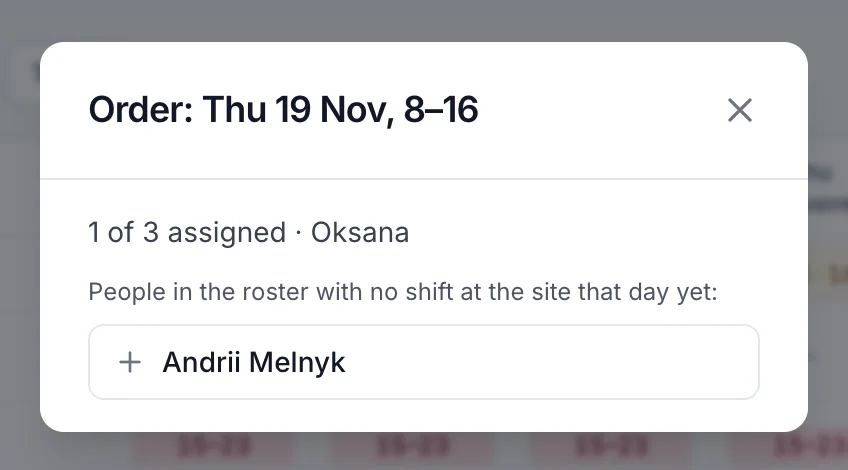
If everyone in the roster already works that day, add another person below the roster. An order that isn't fully staffed also shows in the job list with the Crew 1 of 3 badge, the Only short of crew filter lists all such jobs, and the Dashboard warns about jobs short of crew.
What the crew sees
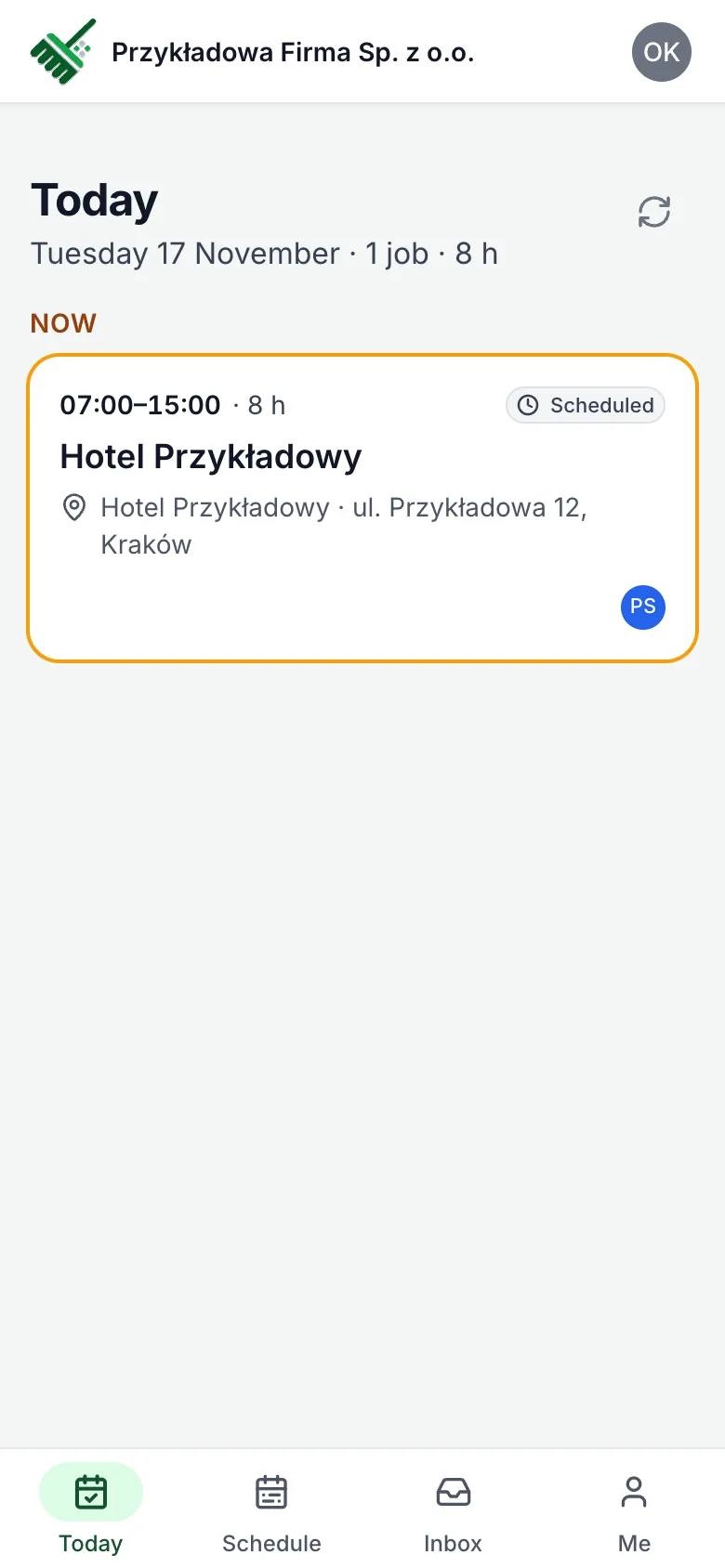
Employees see their shifts in the app under Today and Schedule: the site, the hours, their co-workers, the checklist and notes. There is no Start or Stop button, and the shift's page says You record your hours at the site.
For the changes from one save of the roster, each person gets one summary notification, not a separate one for every day. The client gets no messages from Mopka about roster changes.
Hours from the site's card
At the end of the month, copy the site's cards in the Hours tab. On the left are the month's people and the state of their cards: Entered, No hours on some days or No card. Next to them is the selected person's card, day by day as on paper, with the plan from the roster. On a narrower screen, you pick the person from the Person list.
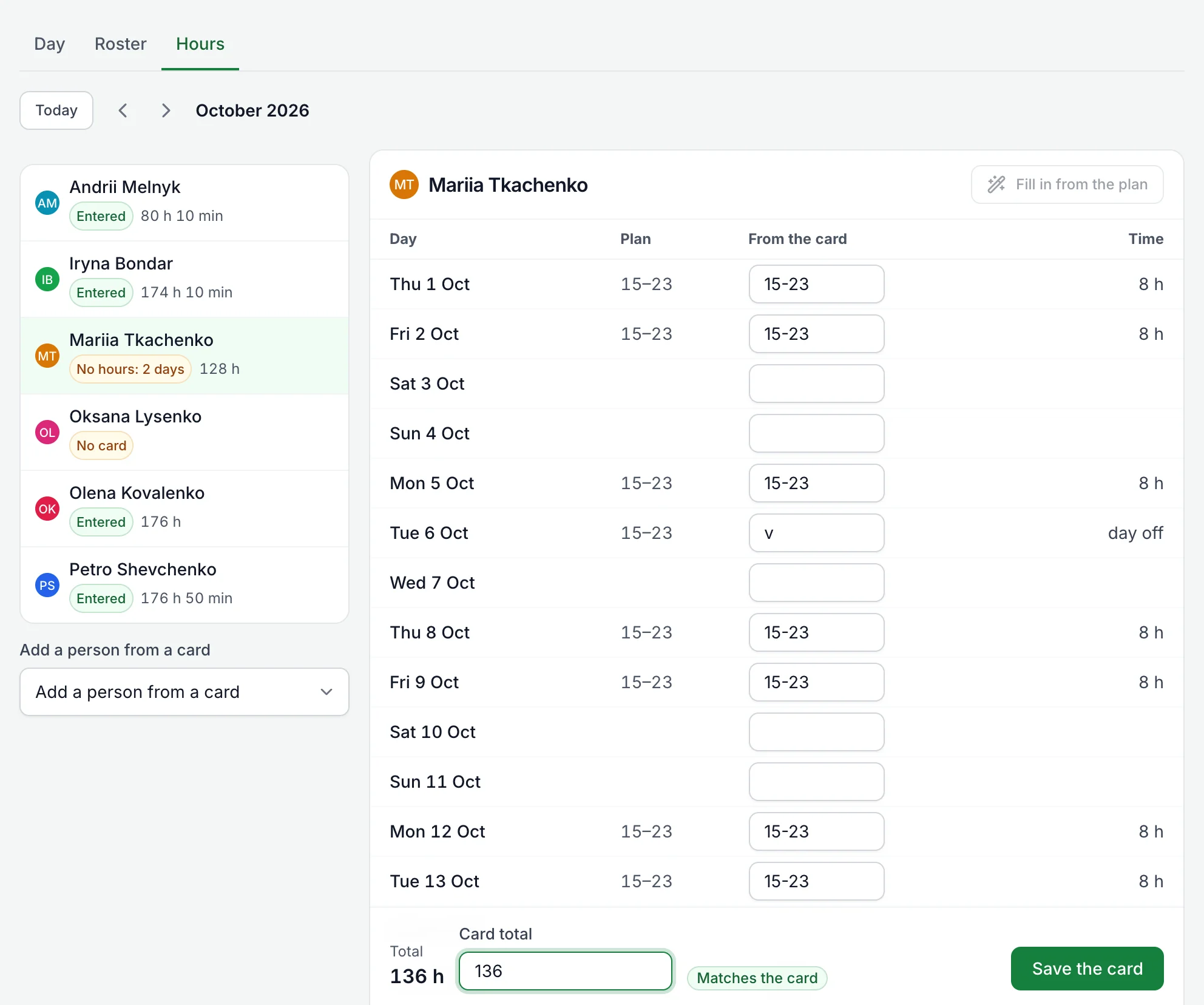
- Type the hours as they are on the card: “8:20-14:40”, “7-15”, “16-24” for a shift until midnight, or just the length “6,20”, which is 6 hours 20 minutes. One digit after the comma (“7,5”) could mean 7:05, 7:30 or 7:50, so Mopka won't accept it: type “7,30”. A length starts at the planned time, and on a day without a plan at the time most shifts at the site start.
- “v” or “off” marks a day off. Enter moves to the next day.
- Fill in from the plan copies the roster's hours into empty days up to today. You only correct the days where the card says something else. Days that haven't passed yet you enter once they have.
- In Card total, type the total from the bottom of the card, for example “183,20”. Mopka shows whether it matches the hours typed in and, if not, how many hours more or fewer there are.
- Save the card closes this person's shifts. A day off takes them off the shift, and an empty day deletes the hours and keeps them in the roster.
- Someone came in as a replacement and isn't in the roster? Pick them in Add a person from a card and type their hours. Mopka adds them to the shift with the same hours or creates a new one.
You can save a card again, for example when the site sends a correction. Saving again replaces the hours from the card and from the plan. These stay read-only: a day with hours from the clock or entered in Time tracking, a day already invoiced or settled, and a closed payroll month. The reason is shown under such a day. A day Mopka doesn't save (for example, the hours overlap another job of that person) stays on the card as typed, with the reason next to it, so you just correct it and save again.
A manager enters the employees' cards. Only the owner changes the hours of managers, including their own, and of the owner.
Invoice for the month
In Invoices → To invoice, the site's shifts from one month are one row: the site's name, the month, the number of shifts, the hours and the amount. You select the whole month and attach one invoice to it with Attach invoice. The arrow expands the row into the individual shifts. Visits in the site's zones go into the same row, with the zone's name.
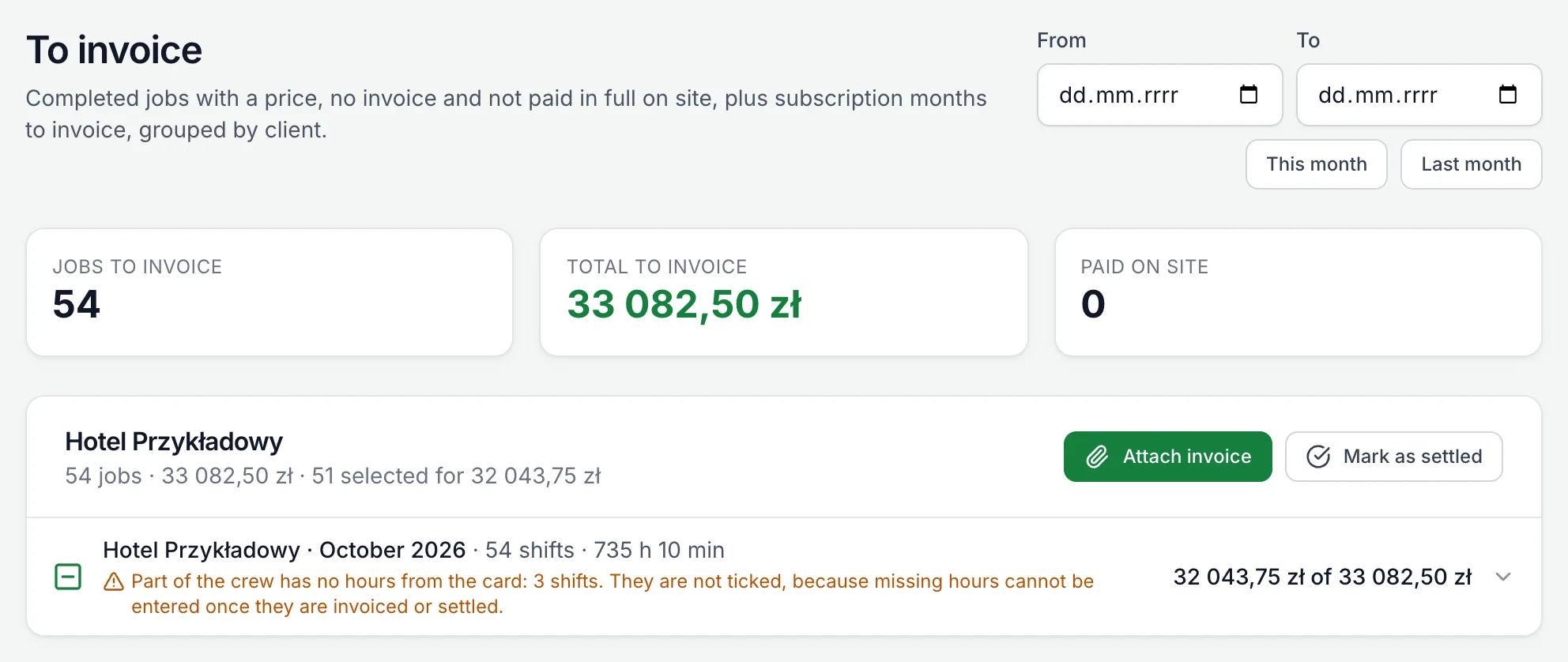
Attach the invoice for the month once you have entered everyone's cards, because the card can no longer change a day that is on an invoice. That's why a shift where someone in the crew has no hours from the card yet waits in the row unselected, with a warning. In the screenshot, three such shifts are waiting.
An invoice issued from Mopka through Fakturownia, inFakt or iFirma has a separate line for each shift.
Payroll
Hours from the card go to Time tracking, marked “from the site's card”, and to Payroll, just like hours from the app. They are paid at the rate the person had on the day worked, so a later rate change doesn't rewrite past months. A card entry whose hours, rate or job you change in Time tracking becomes your own entry, and the next save of the card won't change it.
Without a card, you can also close the site's shifts in the job list with Change Status → Completed. Each person then gets the planned hours, and you correct any differences in Time tracking.
A few questions
Should the regular staff go through staffing orders? No. The regular staff is the roster. You add an order when the site asks for extra people on a specific day, and the roster shows how many people it ordered and how many you have assigned.
Someone was ill but has a shift in the roster. Type “v” on their card for that day. Saving the card takes them off the shift, so they get no hours for that day.
You also clean rooms at the hotel as separate visits. Add the rooms as zones of the site's address, for example a whole floor at once. The Day tab shows them by floor, and the roster shows the visits in them with the zone's name.